
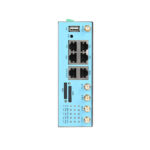
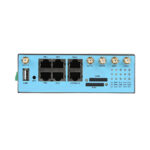
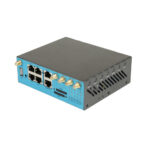





























Before Installation and Configuration
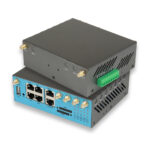
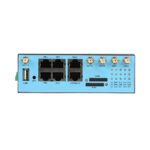
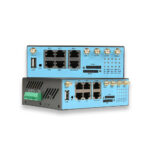
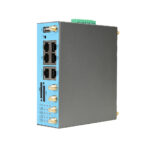
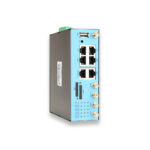
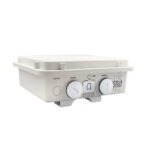
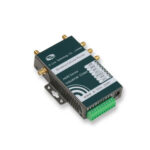
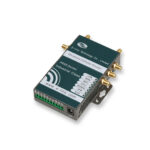
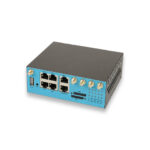
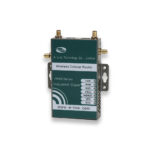
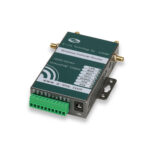
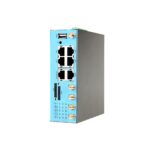
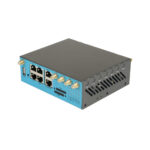
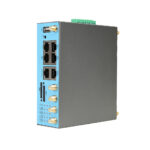
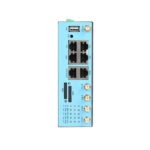
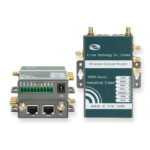
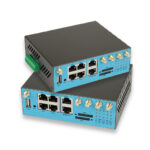
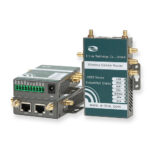
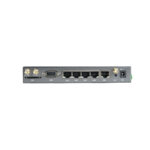
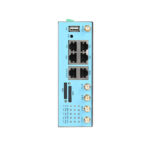
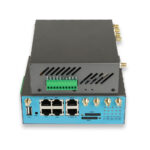
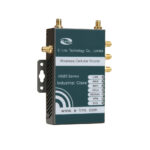
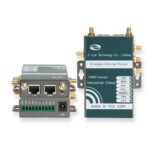
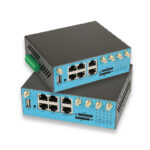
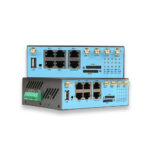
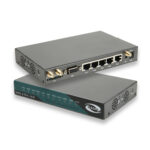
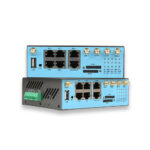
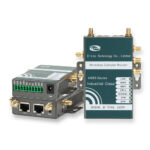
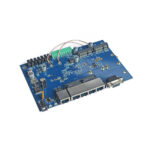
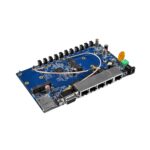
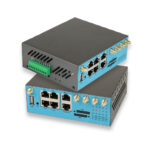
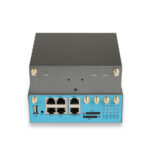
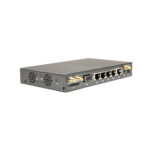
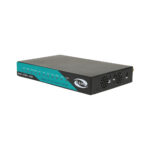
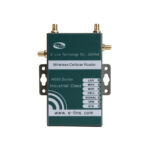
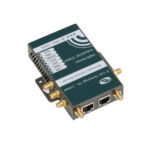
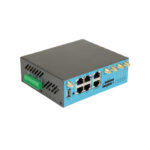
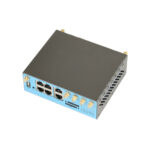
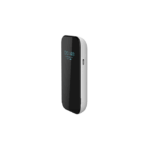
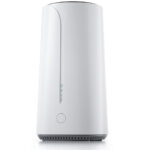
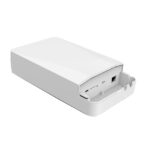
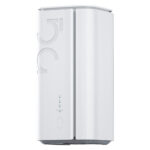
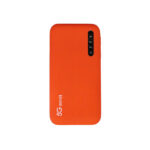
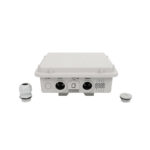
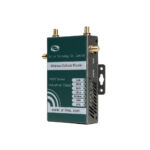
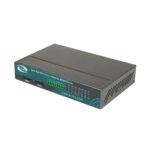
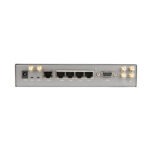
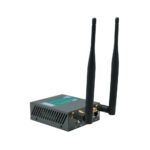
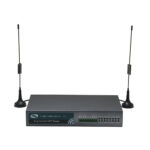
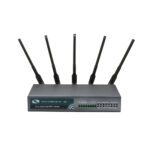
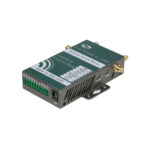
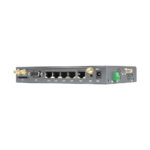
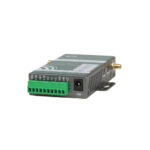
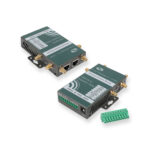
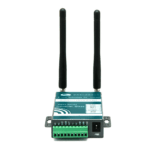
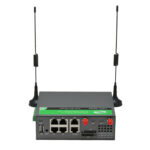
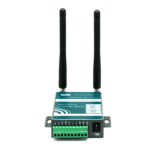
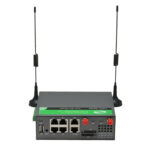
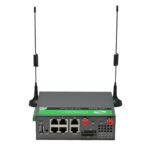
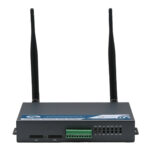
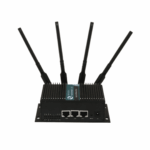
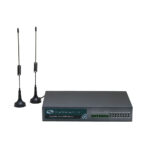
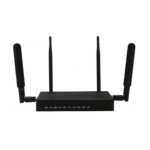
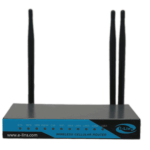
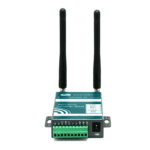
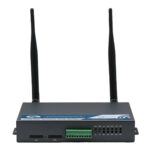
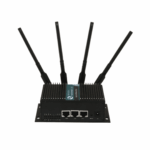
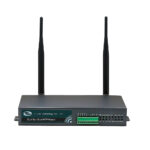
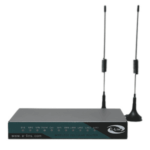
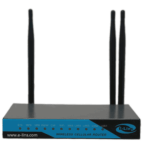
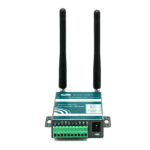
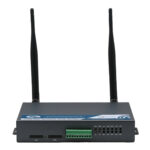
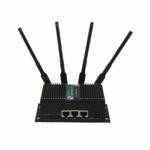
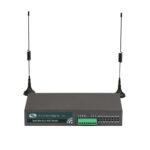
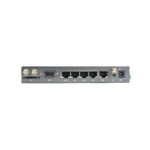
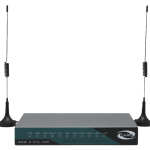
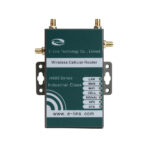
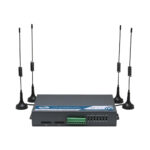
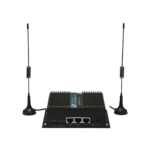
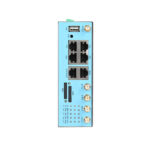
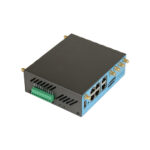
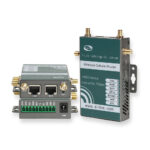
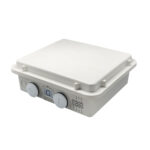
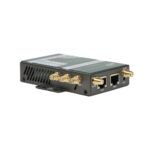
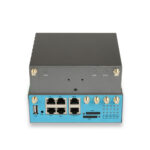
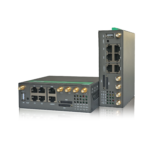
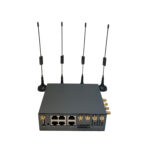
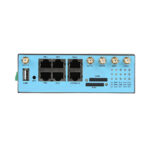
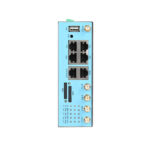
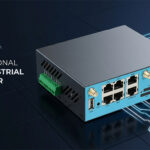
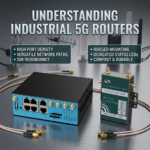
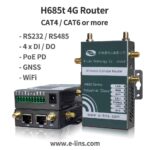
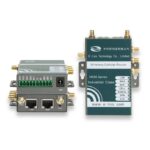
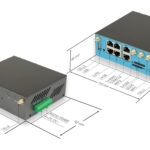
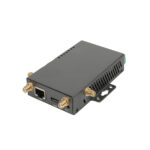
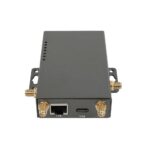
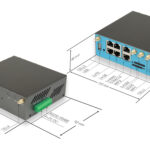
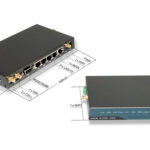
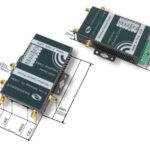
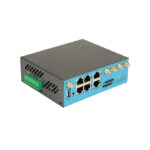
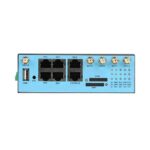
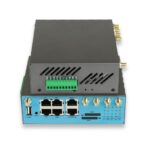
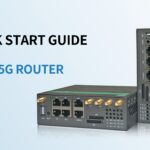
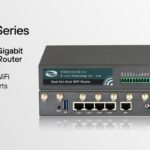
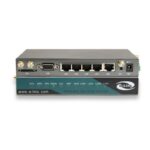
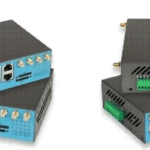
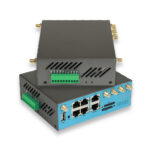
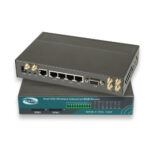
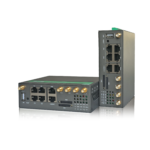
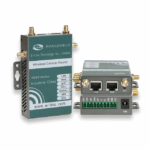
1. H685 router has different version. Study your router version before installation.
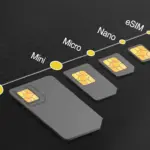
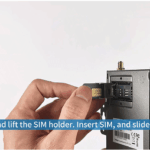
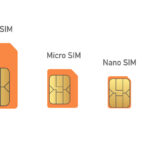
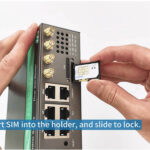
2. For GSM/GPRS/EDGE/HSDPA/HSUPA/HSPA/HSPA+/4G LTE version, please get a SIM card with data business.
3. For CDMA2000 EVDO/CDMA1x version, please get a UIM card with data business or inform us before order if the network uses non-ruim (nam-flashing).
4. Make sure the sim card or uim card is with enough data business and balance.
5. Make sure the signal is good enough where you test or install the router. Weak signal will make the router no work. If you find your signal strength is not good, please contact us for high gain antenna.
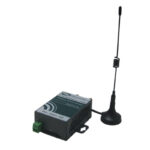
6. Different countries and carriers use different network band and frequency. E-Lins packs units with free world-wide-use antenna. It can work, but the data speed or signal may not be good at your sites. Please buy dedicated high gain antenna from your local suppliers or contact E-Lins to OEM/ODM the antenna.
|
Notes: This quick start is for GSM/GPRS/EDGE/HSDPA/HSUPA/HSPA+/TD-SCDMA/4G LTE network only. For EVDO network or CDMA network, please refer to manual or contact us freely. |
Step 1) Confirm the sim card if can work with other 2G/3G/4G router or modem. If the sim card can not work, the router will not work correctly.
Step 2) Connect the H685 Router LAN port to a PC via RJ45 cable. Make the PC automatically to get the IP, Submask, DNS.
The PC will be get a IP of 192.168.1.xxx.
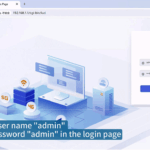
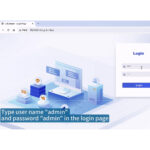
Step 3) At PC web browser, please type: https://192.168.1.1
Username: admin Password: admin
Step 4) System – Setup Wizard
4.1) General

a) Set the Web Login password;
b) Sync with system time with clicking “Sync with browser”, or select the “Timezon”;
c) Click “Save & Apply” button for next step;
4.2) Mobile

|
Item |
Description |
|
|
Enable |
Check it |
|
|
Mobile connection |
Normally system will automatically select |
|
|
APN |
Fill in the right parameters. Get this parameter from the Sim Card Provider or Carrier; |
|
|
PIN number |
If the SIM card uses PIN code, please put here. Wrong PIN code makes router no work. |
|
|
Dialing number |
Fill in the right parameters. Get this parameter from the Sim Card Provider or Carrier. With experience, most of time, 2G/3G/4G use *99#, and CDMA/EVDO use #777. |
|
| Authentication method |
Fill in the right parameters. Get this parameter from the Sim Card Provider or Carrier; |
|
|
None |
No more settings |
|
|
CHAP |
Need set “Username” and “Password” |
|
|
PAP |
Need set “Username” and “Password” |
|
|
Service Type |
Select the network you want to use. Normally keep default settings |
|
|
Demand |
Normally keep default settings |
|
|
MTU |
Normally keep default settings |
|
Click “Save & Apply” button for next step;
4.3) LAN

Set the router LAN IP parameters. Click “Save & Apply” button for next step;
4.4) WiFi

|
Notes: for security, it is highly recommend to set “Encryption” for the WiFi Radio. |
Step 5) once the router is online, it gets a WAN IP Address and Status Page will show similar info, also the “Cell LED” will light on. And “Cell Signal LED” flash if there is enough signal.
|
Level |
Signal Strength Value |
Cell Signal LED Flashing Speed |
|
1 |
1-4 |
Flash per 2 seconds |
|
2 |
5-17 |
Flash per 1 second |
|
3 |
18-31 |
Flash per 0.5 second |
5.1) Status – Overview

Step 6) In order to keep the router working stably, it’s highly recommended to activate the “ICMP Check” feature.

| Notes:
1) For router working with best stability, we highly suggest activate and use this feature. With this feature, the Router will automatically detect its working status and fix the problem. 2) You can fill in Host1 only, also you can fill in Host1 and Host2 together. |
Below list the ICMP checking principle diagram.
